Compare PDF Files
Upload two PDF files to find text differences — side by side comparison with highlighted changes.
Drag & drop PDF here
Drag & drop PDF here
Understanding PDF File Comparisons
When dealing with multiple versions of documents, the ability to compare PDF files becomes essential. PDF, which stands for Portable Document Format, is a widely used file format that allows documents to be shared and viewed consistently across different operating systems and software applications. The importance of effectively comparing these files lies in its capacity to identify changes, verify document accuracy, and ensure consistency across versions.
In various professional domains, comparing PDFs serves critical functions. For instance, in legal documentation, precision is paramount; even the slightest alteration can have significant consequences. Lawyers and paralegals often utilize PDF comparisons to ensure that contracts or agreements are accurate and that no critical clauses have been inadvertently modified. Additionally, discrepancies in legal filings can lead to misunderstandings or disputes, making thorough comparisons essential.
Similarly, in academic settings, comparing PDF versions of research papers or theses can help to ensure that updates or revisions maintain original intent and clarity. This is particularly relevant during peer-review processes, where consistent representation of data and arguments significantly impacts the scholarly discourse. The ability to highlight text differences also aids students and educators in verifying that revisions or citations have been accurately incorporated.
In the business sector, comparing PDF files can streamline the document review process for contracts or proposals. Companies often operate under tight deadlines, and clarity in documentation is essential for decision-making. Consequently, utilizing tools to compare and highlight text differences can promote transparency and mitigate risks.
Overall, understanding the necessity of comparing PDF files not only reinforces document accuracy but also enhances collaboration among stakeholders, ensuring that all parties are on the same page.
How to Upload PDF Files for Comparison
When it comes to comparing PDF files, selecting the appropriate tools for uploading the documents is a crucial first step. Several software options and online platforms allow for efficient side-by-side comparisons, but understanding how to choose a suitable tool can significantly enhance your experience and the accuracy of your results.
Firstly, identify the type of PDF comparison tool that best fits your needs. A variety of options exist ranging from dedicated software applications to online services. Dedicated software usually offers robust features aimed at professional users, allowing for intricate comparisons, whereas online tools often provide a user-friendly interface more suited for casual users. Look for a tool that seamlessly integrates features such as text highlighting, version history, and straightforward navigation.
Next, consider the user interface of the chosen tool. A well-designed interface simplifies the uploading process, allowing users to drag and drop files or upload via file selection dialog. Ease of use is an essential factor; the fewer clicks required to upload files and initiate comparisons, the better. Clear instructions and guided support enhance the usability experience for individuals less familiar with PDF editing software.
Compatibility is another relevant aspect when selecting tools for PDF comparisons. Ensure that the software can accept various PDF formats and is equipped to handle files of different sizes. Many tools impose limits on the size of files that can be uploaded, so it is wise to verify these specifications in advance. In general, most comparison tools handle common PDF file types efficiently.
Before starting your PDF comparison process, remember to familiarize yourself with the tools you choose to ensure a smooth and productive experience. By adhering to these guidelines, users can effectively upload PDF files for comprehensive text comparisons, subsequently leading to improved efficiency in reviewing document changes.
Conducting a Side-by-Side Comparison of PDFs
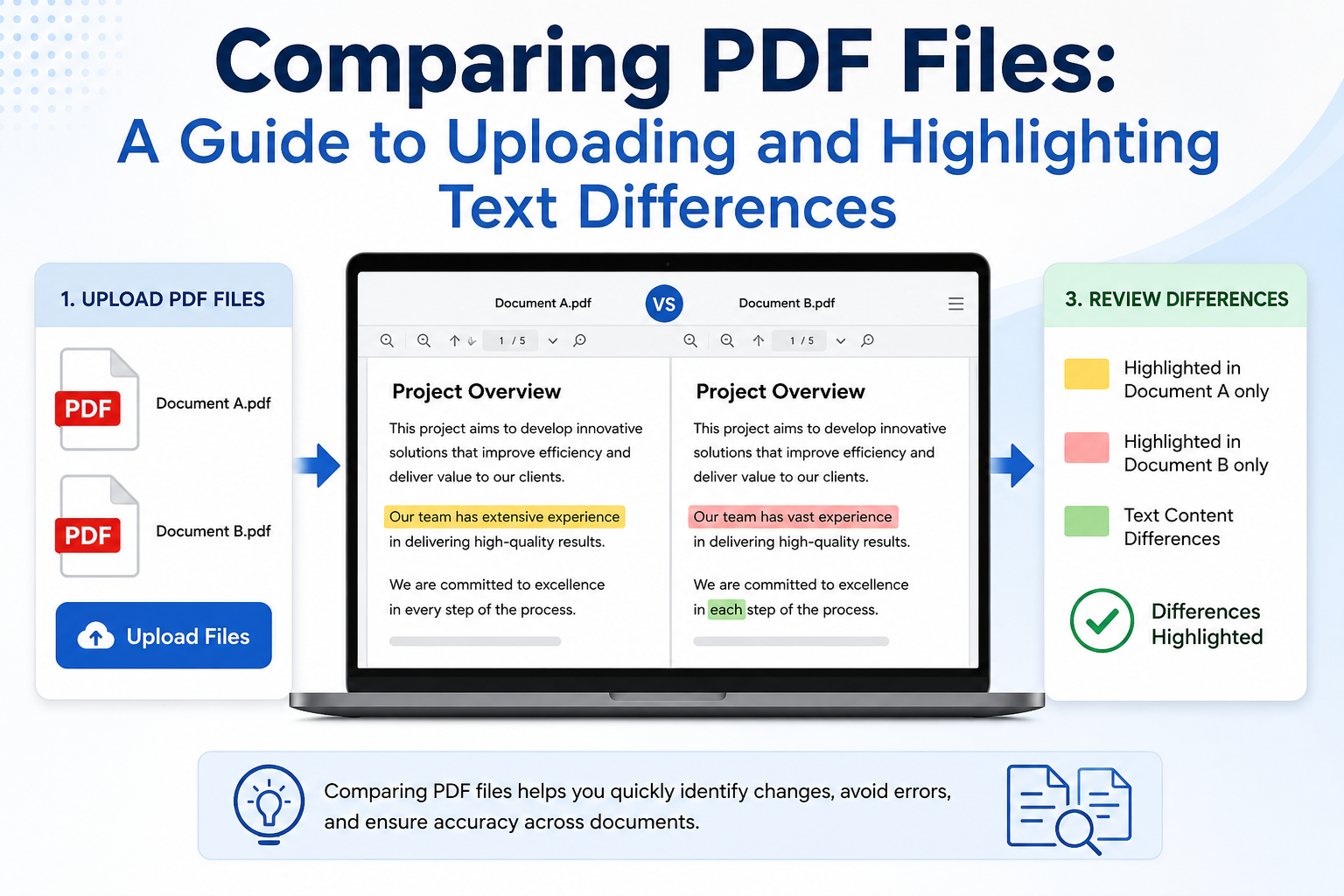
To conduct an effective side-by-side comparison of PDF files, it is essential to follow a systematic approach to ensure accuracy and efficiency. Begin by uploading the two PDF files you wish to compare into a dedicated comparison tool. Many such tools are available online, providing users with a straightforward interface for their comparison tasks.
Once the files are uploaded, familiarize yourself with the tool’s interface. Typically, you will notice options for viewing both documents simultaneously. Look for features that allow you to adjust the layout based on your preferences, such as horizontal or vertical views, which can enhance your understanding of text differences between the files.
Initiating the comparison process often involves clicking a designated button labeled ‘Compare’ or ‘Start Comparison’. The tool will analyze the contents of both files, highlighting discrepancies in text, formatting, and other elements. It’s vital to pay attention to the manner in which differences are presented, as most tools utilize color-coding to denote changes—commonly, red marks for deletions and green for additions.
For a more in-depth examination, utilize the zoom feature to focus on specific sections that require a closer look. Adjusting the zoom level can help isolate critical variations that may not be immediately noticeable at a standard viewing distance. Furthermore, many comparison tools equip users with various viewing modes, including a synchronized view that allows scrolling through both documents simultaneously, facilitating easy cross-reference.
Finally, consider taking notes directly within the comparison tool. This can aid in documenting your observations and decisions concerning each highlighted change, ultimately streamlining the review process and ensuring no vital detail is overlooked.
Highlighting Changes and Analyzing Differences
When comparing PDF files, the ability to highlight changes and analyze differences effectively is crucial. The highlighted sections facilitate a clear view of modifications, allowing users to discern what has changed from one version to another. This comparison often includes text changes, formatting adjustments, and other alterations that may impact the overall context of the document.
To begin analyzing these highlighted changes, it is essential to categorize them. Text changes may involve additions, deletions, or substitutions, while formatting changes can pertain to font size, style alterations, or layout modifications. A clear categorization helps in understanding the nature and significance of the modifications. For instance, a critical text change, such as the removal of a clause or phrase, may require immediate attention and possibly a discussion with relevant stakeholders.
Once the differences have been categorized, it is important to evaluate their implications. Practically, this means determining whether the changes are minor corrections that do not affect the document’s integrity or significant revisions that require follow-up actions. For example, in legal documents, even a small change can have substantial consequences, warranting thorough examination.
Documenting the findings is another vital step in this process. Keeping a record of the analyzed changes, along with notes on their implications and any action to be taken, serves several purposes. Not only does it create a reference point for future discussions, but it also aids in ensuring that all contributors are on the same page regarding revisions made. Therefore, utilizing tools that allow for easy annotation and merging of comments may enhance collaborative efforts.
In summary, effectively interpreting highlighted changes in PDF files involves categorization of differences and an analysis of their significance. By documenting these findings, users can ensure clarity and maintain a record for future engagements